It’s simple to add an audio track to your PowerPoint slideshow. You can play a song on any slide in your presentation. Alternatively, you can select one piece of music that will loop continuously from the time you click its audio button until you close your PowerPoint presentation.
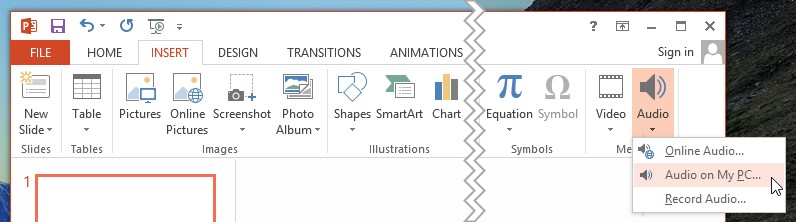
To add a music file from your hard drive, choose a slide in PowerPoint, select INSERT, click Audio, and click Audio on My PC.
Navigate to the directory that contains your audio files. PowerPoint will display a list of your audio files in all of the popular formats. You’ll see your .mp3 and .mp4 files, your Windows Audio Files (.wav), and your Windows Media Audio Files (.wma), as well as audio tracks that are stored in some less popular formats.
Highlight the file that you want to add to your slide, and click Insert. PowerPoint will add the familiar audio button to your slide. To start the music during your presentation, just click the audio button. Your music will play as long as that slide is being displayed.

PowerPoint makes it easy to grab an audio file from the Internet, or to record a file yourself. To access the large library of online sounds and music that is available for free to Office 2013 users, select INSERT, click Audio, and click Online Audio. PowerPoint will download the file that you’ve selected, and make it available during your presentation.
To record your own audio track, select INSERT, click Audio, and click Record Audio. Follow the instructions on the screen for starting and stopping the recorder.
If you want music to loop continuously during your PowerPoint slideshow, set up a music file using one of the procedures described above. Next, click the song’s audio icon. Select Audio Tools Playback and then select Play in Background. The music will start playing, and will continue to play until you close your presentation.

Adding music to your PowerPoint presentation might be a great idea. People are accustomed to hearing musical soundtracks on just about every movie and TV show that we watch. So hearing a low-volume musical track playing during your slideshow might feel normal to most people.
For two groups of people, adding a music track will make them less able to appreciate your presentation:
Many people in your audience are already being distracted by text messages, by social media interruptions on their smartphone or tablet, and by the ambient noise in the room in which you’re making your presentation. If your music track further degrades their ability to absorb and process the information in your presentation, then adding a music track is a bad idea.
PowerPoint makes it simple to add music to your presentation. But that doesn’t mean that adding music will help you achieve the goals of your presentation. Choose carefully.
It’s possible to use PowerPoint for years without ever thinking about the various file formats that are available to you. By learning about PowerPoint’s file formats and options, however, you can do a much more effective job of creating presentations, backing them up, sharing them with colleagues, and protecting the information that they contain.
When you save a simple PowerPoint presentation, you give it a name, and PowerPoint adds the file extension .pptx. Your Sales Presentation file becomes Sales Presentation.pptx.
If your PowerPoint presentation contains one or more macros, PowerPoint will automatically detect their presence and save your presentation as a .pptm file. You can force PowerPoint to save a presentation that includes macros as a .pptx file, but PowerPoint won’t let you play the macros that you’ve included in your slide slow. So it’s best to let it save your file with the .pptm extension.
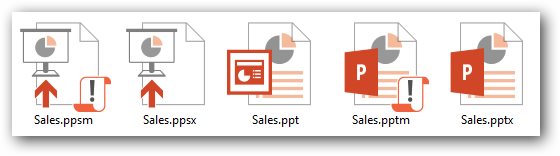
If you need to share your presentation with a colleague who is using an older version of PowerPoint, then save your slides as a .ppt file. PowerPoint 97 through 2003 cannot open and process .pptx or .pptm files.
If you’re using PowerPoint 2007 or newer, you should always save your work in .pptx format (or in .pptm format if you’ve used macros in your presentation). The options described below are additional ways to save your work. Be sure to save them first as ordinary .pptx or .pptm files before you save them in any of these other formats.
If you want to give your PowerPoint presentation to a friend or colleague, and you don’t want them to change anything, then save your presentation as a PowerPoint Show file. Your colleagues can display your slides, but they will be unable to change any part of your presentation.
There are three types of PowerPoint Shows: Save an ordinary presentation as a .ppsx file. If you’re using macros in your presentation, save it as a .ppsm file. If you’re sending your slide show to somebody who is using PowerPoint 97 through 2003, then create a .pps PowerPoint Show file.
Be sure to save your presentation as a plain vanilla (.pptx) file or as a macro-enabled (.pptm) file. If you’ve only saved the Show file, you won’t be able to make changes to your presentation.
Picture Presentations add an additional layer of protection to your work. To the casual observer, a PowerPoint Picture Presentation looks like an ordinary PowerPoint slideshow. But when you save your work as a Picture Presentation, each slide is converted to a simple image.
Slides contain text objects, image objects, animations, transitions, and many other special effects. By contrast, Picture Presentations contain only snapshots of your slides.
If somebody wants to copy your work, they can see each of the images and retype the text. They can even grab (and re-crop) the images. But they cannot capture any of the magic that is PowerPoint.
If you create a Picture Presentation, be sure to give it a unique name. If you only save the Picture Presentation .pptx file, you won’t be able to modify your presentation in the future.
You can convert your PowerPoint presentation to an ordinary Windows Media Video (.wmv) file, and play it using the built-in Windows Media Player or any other video player. Your .wmv file can be enjoyed by any Windows or Mac user, even if they don’t have PowerPoint installed on their computer.
As always, don’t make your .wmv file the only version of your slideshow or you’ll be very disappointed when you want to make changes to the presentation.
PowerPoint lets you turn your slideshow into plain text. This is handy if you want to move some of the presentation’s text to your website or blog.
When you create a rich text format (.rtf) file, you save only the text. You lose all of the images, animations, slide-to-slide transitions, and other non-text objects.
It’s easy to save your presentation as a portable document format (.pdf) file. These .pdf files can be opened on any Windows, Mac, Unix/Linux, iOS, or Android device. The resulting file, however, is a static document. Don’t expect to see slides fade in and out. All of your animated objects will become static.
You can save your slides as an XML Paper Specification (.xps) file. That’s a fancy way to say that if you double-click your .xps file in Windows Explorer, the operating system will open your file using its built-in XPS Viewer.
The XPS format is ideal for sending your slideshow to users who have neither PowerPoint nor Adobe Acrobat Reader installed on their computers. As with the .pdf format above, .xps files have text and images, but no animation.
If you’re happy with this year’s Financial Results slideshow, and you want to create next year’s presentation using the same colors and fonts, then save your current presentation as a template, and use it over and over.
As you may have guessed, save your work as a .potx file for use in PowerPoint 2007 and newer, as a .potm file for a 2007 or newer macro-enabled presentation, and as a .pot file for use on PowerPoint 97 through 2003.
Because Microsoft PowerPoint is part of Microsoft Office, you can use two Office file types to make your PowerPoint work easier and safer.
You can save your presentation theme as an Office .thmx file. Future PowerPoint presentations, as well as Word documents and Excel spreadsheets, can use this Office theme to set their fonts and colors. This results in a consistent look and feel to all of the Office documents that you present to prospects and customers.
Autosave is built into most Office applications, including PowerPoint. If you experienced a power outage and hadn’t saved your PowerPoint presentation before you lost power, it’s possible that there’s a recent version of your slideshow in the Office Autosave library. If you click File, click Open, and click Recover Unsaved Presentation, you may be pleased by the information that PowerPoint saved for you.
There’s no need to memorize all of the PowerPoint file extensions and options that are available. But be sure that you’re including all of these files when you do your regular on-site and off-site backups. And bookmark this blog page so that you can return to it when you need to save or open a PowerPoint presentation in one of the less popular file formats.
ShapeChef is a tool that helps you find and manage graphics and charts for your presentations. Click here for details.